App Store
Step 1: Transfer criteria (for developers)
- Both the transferor and recipient accounts can’t be in a pending or changing state, and the latest version of their agreements in the Agreements, Tax, and Banking section must be accepted.
- No version of the app can use an iCloud entitlement.
- No version of the app can use a Passbook entitlement.
- The App must have had at least one version that has been released to the App Store.
- The app should have one of the following app statuses:
Ready for Sale,Prepare for Submission,Developer Removed from Sale,Invalid Binary,Developer Rejected,Rejected
- In-app purchase products can have one of the following statuses:
Approved,Ready to Submit,Developer Removed from Sale,Rejected
- In-app purchase product IDs on the app can’t be the same as product IDs on any apps in the recipient’s account.
- TestFlight beta testing should be turned off for all beta versions of the app.
- Sandboxed Mac apps that share the Application Group Container Directory with other Mac apps cannot be transferred
Step 2: Initiate the app transfer (for developers)
The Legal user in your organization initiates the app transfer.
- From the homepage, click My Apps.
A list of all apps appears.
- Select the app you want to transfer.
The App Store page opens with App Information selected.
Tip: If you have many apps, use the toolbar controls to quickly find the app.
- Scroll to the Additional Information section and click Transfer App, then click Done.
- If all criteria have been met, click Done. Otherwise, resolve the issues.
Otherwise, resolve the issues (go to App transfer criteria).
- In the dialog that appears, enter the Apple ID and Team ID for the recipient’s Legal user (Team Agent), and click Continue.

- Read the terms, select “I have read and agree to the agreement presented above,” and click Request Transfer.

- Click Done to return to the App Information page.
After you initiate the transfer, the app stays in its previous status, with the Pending App Transfer status added, until the recipient accepts it.
While the app is in this state, you (the transferor) can’t edit the app metadata, rights, pricing, and in-app purchases. Any open communications in the Resolution Center are closed. If the app is part of a Game Center group, the recipient can’t make changes to the group.
The transferor and the recipient can cancel an app transfer in Agreements, Tax, and Banking while it is still in the Pending App Transfer state. To cancel the transfer, the transferor must click Revoke next to the app in the Contracts In Process subsection of the Transfer Agreements section.
Step 3: Accept the app transfer (for Homa’s internal representative)
The Legal user in the recipient organization accepts the app transfer. Go to Accept an app transfer.
Google Play Store
Step 1: Transfer criteria
What transfers:
- Apps’ users
- Download statistics
- Ratings
- Reviews
- Content ratings
- Store listing information
What doesn’t transfer (It’s a good idea to download the reports below if you’ll need them later):
- Bulk exports
- Payout reports
- Earning reports
What you’ll need:
Step 2: Initiate and complete the transfer
- Find the transaction ID
This is in the receipt that was emailed when you registered your account. If you can’t find the email, check your transactions payments.google.com on the account where you paid the account registration fee
Should look like one of these:
- 01234567890123456789.token.0123456789012345
- 0.G.123456789012345
- registration-1234ab56-7c89-12d3-4567-8e91234567f8
- Transfer app
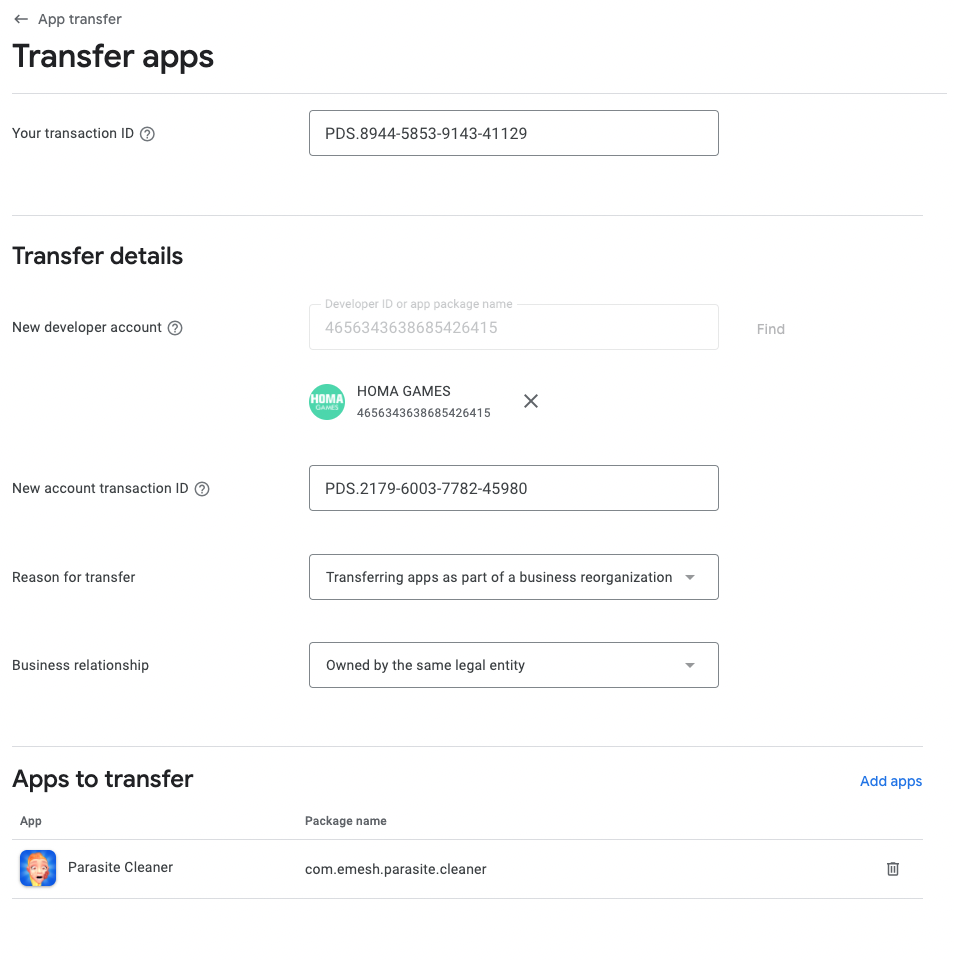
- If you're transferring paid apps or apps with in-app products, your target account needs to have an active payments profile.
If you're using a different default currency on your target account, here are two conditions that apply to your transfer:
⚠️ In-app purchases only: You need to add a price in the new default currency for each in-app product. After your app is transferred to your target account, the app will be unpublished until you publish it again. Once you've verified the new prices on your target account, publish the app again.
Paid apps: Default currency changes will be automatically applied to app prices.
Tip: If you're only transferring free apps and have completed the previous steps, move on to the next step.
If you use any integrated services on your apps, including Google Analytics, Firebase, and Google Play game services, make sure to update your account settings and apps.
- If you don't use any integrated services on your apps, move on to the next step to submit your transfer request.
Google Analytics: Add permissions for your target account to your Google Analytics account.
Google Developer Console projects: Add your target account as an Owner for your Google Developer Console projects. These projects can include Google+ sign-in, Google Play game services, and other Google APIs.
Firebase projects: Unlink any Firebase projects from the original Play Console account and link the projects to the target account.
Ad SDK integrations (including AdMob): Once your apps have been transferred to your target account, to make sure ad traffic is credited to the correct account, all ad SDK integrations will need to be updated in your apps' APK files.
APK translations: If you have any translation projects in progress using Google Play's translation service, they need to be completed before your app(s) can be transferred.
Managed Google Play: To transfer a private app, make sure the account you want to transfer your app to is associated with your organization. Before the transfer can be completed, you'll need to temporarily unpublish your app and remove organization restrictions. Our support team will work with you to minimize the time your app isn't visible. Existing users will still be able to use and reinstall the app during the transfer process.
- After the app is transferred, the app will be unpublished.
- Set the IAP price in the new default currency
- Publish the app.
⚠️ When the game is on our account, please make you have changed the basic information from the URL to the contact email. You can check the information on the ASO deck
⚠️ It will take about a few hours before the game is officially transferred and you might have to send a confirmation by email for the transfer to be done quicker.
Homa Games Developer ID & RevenueCat
If game uses Homa Belly Purchases, update RevenueCat settings upon migration: https://www.notion.so/homagames/Configuring-RevenueCat-for-Homa-Belly-Purchases-18e57fb47fab43f1924c2618f2588ef4#3d7f5ecf3b084eec9efe6ea23a401054